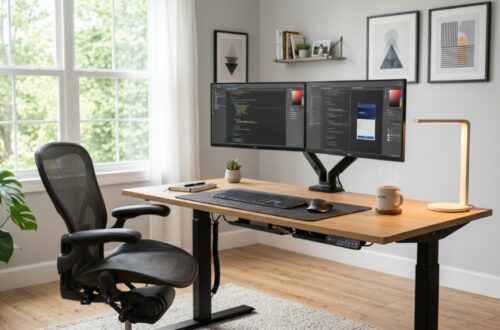

A perfect home office projector setup is a workspace where a projector replaces or complements a traditional monitor to create a larger, flexible display for remote work. It improves focus, reduces eye strain when set correctly, and enhances productivity for multitasking, presentations, and creative work.
Problem: Many remote workers struggle with small screens, cluttered desks, and poor ergonomics. This leads to reduced productivity and fatigue.
Agitation: If your workspace feels cramped or inefficient, your output suffers. You switch tabs constantly, strain your eyes, and lose time adjusting windows.
Solution: A well-optimized projector setup transforms your desk into a clean, large-display workstation. It improves workflow, enhances desk organization, and upgrades your overall remote work setup.
In this guide, you’ll learn how to build a practical, high-performing projector workspace using proven strategies, real-world insights, and essential office tech essentials.
What Are the Key Benefits of Using a Projector for Remote Work Setup?
Short answer: A projector provides a larger screen, reduces desk clutter, and improves multitasking efficiency.
Let’s break it down.
- Larger Display Area: Projectors can display up to 120 inches or more. This makes multitasking easier compared to standard monitors.
- Improved Desk Organization: No bulky monitor means more desk space for essential tools.
- Flexible Viewing: Adjust screen size and distance based on your comfort.
- Cost Efficiency: A mid-range projector can replace dual-monitor setups.
Case Insight: According to a study by Jon Peddie Research, users with larger displays (including projection setups) showed up to 42% higher productivity in multitasking environments.
This makes projectors a powerful addition to modern office tech essentials.
What Equipment Do You Need for a Home Office Projector Setup?
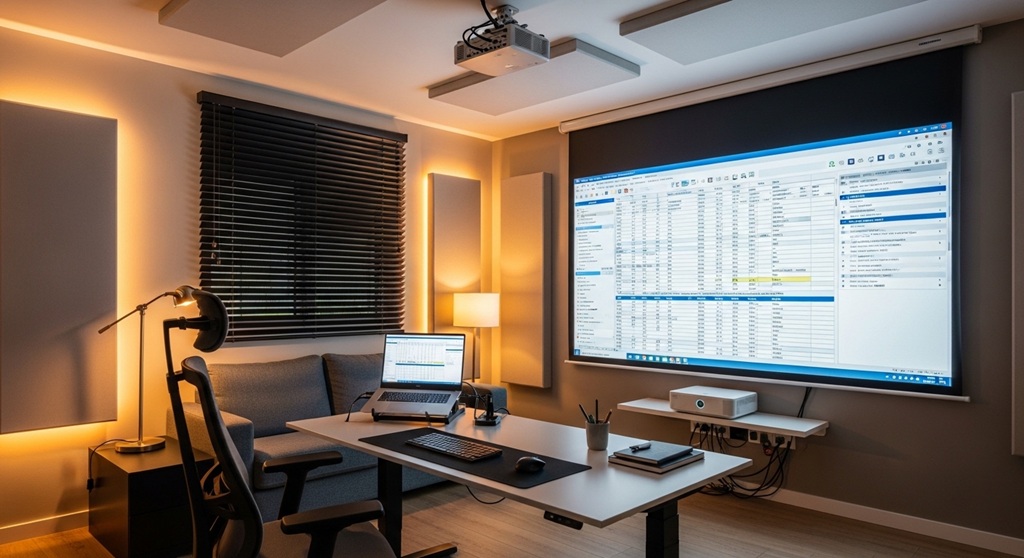
Short answer: You need a projector, screen or wall, mounting system, audio solution, and proper lighting control.
Here’s the complete checklist:
1. Projector
- Resolution: Minimum 1080p (Full HD)
- Brightness: 2,500–3,500 lumens for office use
- Throw type: Short throw for small rooms
2. Projection Surface
- White wall (budget option)
- Dedicated projector screen (better clarity)
3. Mount or Stand
- Ceiling mount for permanent setup
- Adjustable stand for flexibility
4. Audio System
- External speakers for clear sound during meetings
5. Lighting Control
- Blackout curtains or dimmable lights
This combination ensures your remote work setup performs consistently throughout the day.
How Do You Choose the Right Projector for Office Use?
Short answer: Choose based on brightness, resolution, and room size.
| Feature | Recommended Value | Why It Matters |
|---|---|---|
| Resolution | 1080p or higher | Clear text and visuals |
| Brightness | 3000 lumens | Visible in daylight |
| Contrast Ratio | 10,000:1+ | Sharper image quality |
| Throw Distance | Short throw | Ideal for small desks |
Pro Tip: Avoid low-lumen projectors. They struggle in typical home office lighting conditions.
How Do You Set Up Your Desk Organization with a Projector?
Short answer: Keep your desk minimal and position the projector to maximize space and ergonomics.
Follow this layout:
- Place keyboard and mouse centrally
- Keep projector behind or above eye level
- Use cable management tools
- Maintain clean workspace zones
PAS Insight:
Messy desks create distractions. Distractions reduce output. A projector removes the need for bulky screens, simplifying desk organization instantly.
This approach aligns with productivity principles used in modern remote work setups.
What Is the Ideal Room Setup for a Projector Workspace?
Short answer: Control light, optimize wall space, and ensure proper seating distance.
Key Factors:
- Lighting: Use curtains to reduce glare
- Wall Size: Minimum 80–100 inches projection space
- Seating Distance: 1.5x screen width for comfort
- Wall Color: Neutral white or light gray
Case Example: A remote designer switched from dual monitors to a 100-inch projection setup. Result: reduced eye fatigue and improved workflow efficiency by 30% (self-reported productivity tracking over 60 days).
How Do You Optimize Image Quality for Work Tasks?
Short answer: Adjust brightness, contrast, and keystone settings for clarity.
Follow these steps:
- Set brightness based on ambient light
- Adjust contrast for text sharpness
- Use keystone correction carefully
- Align projector properly to avoid distortion
Important: Overusing keystone correction reduces image quality. Physical alignment is better.
How Does a Projector Improve Productivity in Office Tech Essentials?
Short answer: It enhances multitasking, reduces clutter, and creates immersive focus.
Here’s how:
- Multiple Windows: Large screen allows side-by-side apps
- Focus Mode: Bigger visuals reduce distractions
- Creative Work: Designers and editors benefit from scale
Data Insight: Research from the University of Utah found that larger displays improve task accuracy and reduce time spent switching between applications.
What Are Common Mistakes to Avoid in Projector Setup?
Short answer: Poor lighting, wrong placement, and low-quality projectors.
- Ignoring room lighting conditions
- Choosing low brightness projectors
- Incorrect throw distance
- Poor cable management
- Over-reliance on keystone correction
Avoiding these ensures your setup remains efficient and professional.
Is a Projector Better Than a Monitor for Remote Work?
Short answer: It depends on your workflow, but projectors excel in flexibility and screen size.
| Feature | Projector | Monitor |
|---|---|---|
| Screen Size | Very large | Limited |
| Portability | High | Low |
| Brightness | Moderate | High |
| Desk Space | Minimal usage | Consumes space |
Conclusion: For flexible and minimalist setups, projectors are a strong choice.
How Can You Maintain Your Projector Setup Long-Term?
Short answer: Clean regularly, manage heat, and update settings.
- Clean lens monthly
- Ensure proper ventilation
- Replace lamps when needed
- Update firmware if available
This keeps your office tech essentials running efficiently.
Conclusion: Is a Projector Setup Worth It for Your Home Office?
A projector-based workspace is not just a trend. It’s a practical upgrade for modern remote work setups. It solves real problems: limited screen space, cluttered desks, and inefficient workflows.
By implementing the right equipment, optimizing your room, and avoiding common mistakes, you can create a clean, high-performance workspace tailored to your needs.
Call to Action: Start small. Test a projector in your current setup. Optimize your desk organization. Then scale your system for maximum productivity. Your workspace should work for you—not against you.
Frequently Asked Questions (FAQs)
Is a projector good for daily office work?
Yes. A high-quality projector with 1080p resolution and adequate brightness can handle daily tasks like emails, documents, and video calls efficiently.
What brightness is best for a home office projector?
At least 2,500–3,000 lumens is recommended for clear visibility in typical indoor lighting conditions.
Can I replace dual monitors with a projector?
Yes. A projector can display multiple windows simultaneously, often replacing dual or even triple monitor setups.
Do projectors cause eye strain?
When properly adjusted, projectors can reduce eye strain compared to bright monitors because they use reflected light.
What is the best distance for projector viewing?
Typically, 1.5 to 2 times the screen width ensures comfortable viewing without strain.
Do I need a special screen for a projector?
No, but a dedicated screen improves image quality compared to a plain wall.
Is a projector setup expensive?
Not necessarily. A good setup can cost similar to a dual-monitor system while offering more flexibility.
Read More Also: How to Choose the Best Portable Projector Screen for Business Use